
How to turn a photo into a coloring page on iPhone or iPad
Use a clear photo, choose the right level of detail, and turn it into printable line art with HueFetti. Here is how to get a page that is enjoyable to color.
A pet portrait, a garden project or a favorite trip can become a coloring page instead of another picture left in your camera roll. HueFetti redraws a photo as line art; it is not simply a black-and-white photo filter. The result can change details, so preview it before you save or print.
1. Choose a photo with one clear story
Start with a subject that stands out from the background: a dog sitting on a lawn is an easier starting point than a crowded room. Look for a complete face or body, useful light and a recognizable pose. Crop out unrelated objects before you begin if they would distract from the page.
- For a pet: choose a clear outline and a pose you can recognize even without its original colors.
- For a shared activity: keep the important people and the main object visible, such as two people painting a birdhouse.
- For a place: try one focal point, like a house or tree, rather than a distant scene full of tiny details.
Use your own pictures or ones you have permission to use. Have an adult make decisions about photos of people, especially children. Avoid photos containing private documents, addresses or anything you do not want submitted for processing. Read how HueFetti handles photos before uploading.
2. Choose photo creation and a detail level
Open HueFetti, choose photo creation and select your picture. Choose the level of detail for the person who will color the page. Bold, open shapes leave room for broad crayon strokes; a more detailed scene gives an artist more small areas to explore.
Wait for the creation to finish with an internet connection available. Photo and AI creation use an available custom-sheet allowance. HueFetti Club includes 30 custom sheets per billing month; the allowance resets and does not roll over. Check the app for your current access and purchase options.
A real photo-to-line-art example

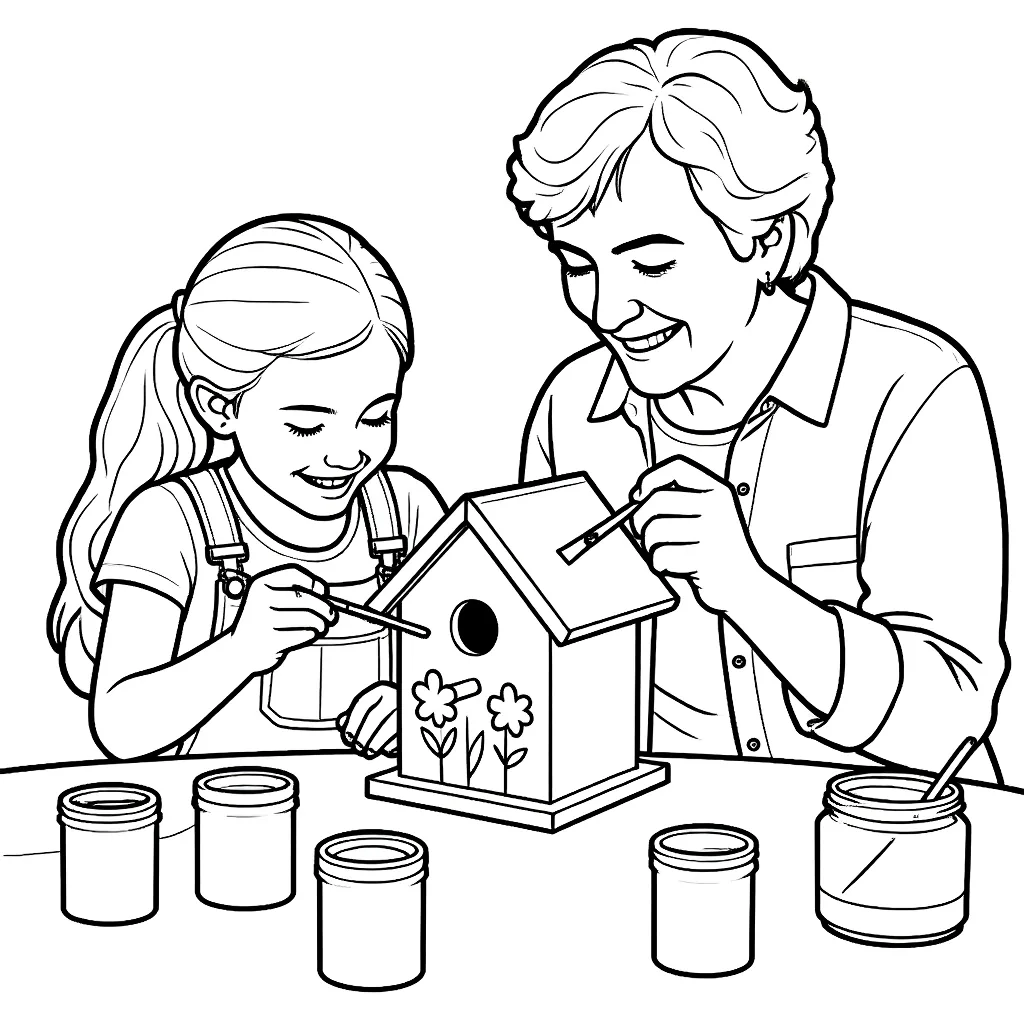
The shared activity gives the page a focal point. Compare the people, birdhouse and outlines in the two images. This is one example of an AI conversion, not a guarantee that every photo will preserve every detail.
3. Check the page before saving
Ask whether the subject is recognizable, whether the lines leave enough room to color, and whether the page is too busy. If the background overwhelms the subject, a simpler source photo or a tighter crop may work better. A different creation can use another sheet from your allowance, so check before requesting it.
4. Color on screen or print a clean page
Use HueFetti’s coloring tools on iPhone or iPad, or export a page as PDF or PNG for paper. For a printed activity, choose the uncolored page you want and check the preview. Our iPhone and iPad printing guide explains paper size, margins and AirPrint.
Common questions
Can I do this without internet?
Photo and AI creation require internet. The included coloring library and canvas can be used offline.
Will the page match my photo exactly?
No. AI redraws the scene and may change faces, small objects, proportions or other details. Check the result and treat it as a new creative interpretation.
Do I need to send a child’s photo?
No. An adult’s own pet, plant, object or travel photo can make a personal page without submitting a child’s image.